Best html.to.design Alternatives in 2026
Compare html.to.design alternatives for copying websites into Figma, including Chrome extensions, Figma plugins, screenshot workflows, and manual rebuilds.
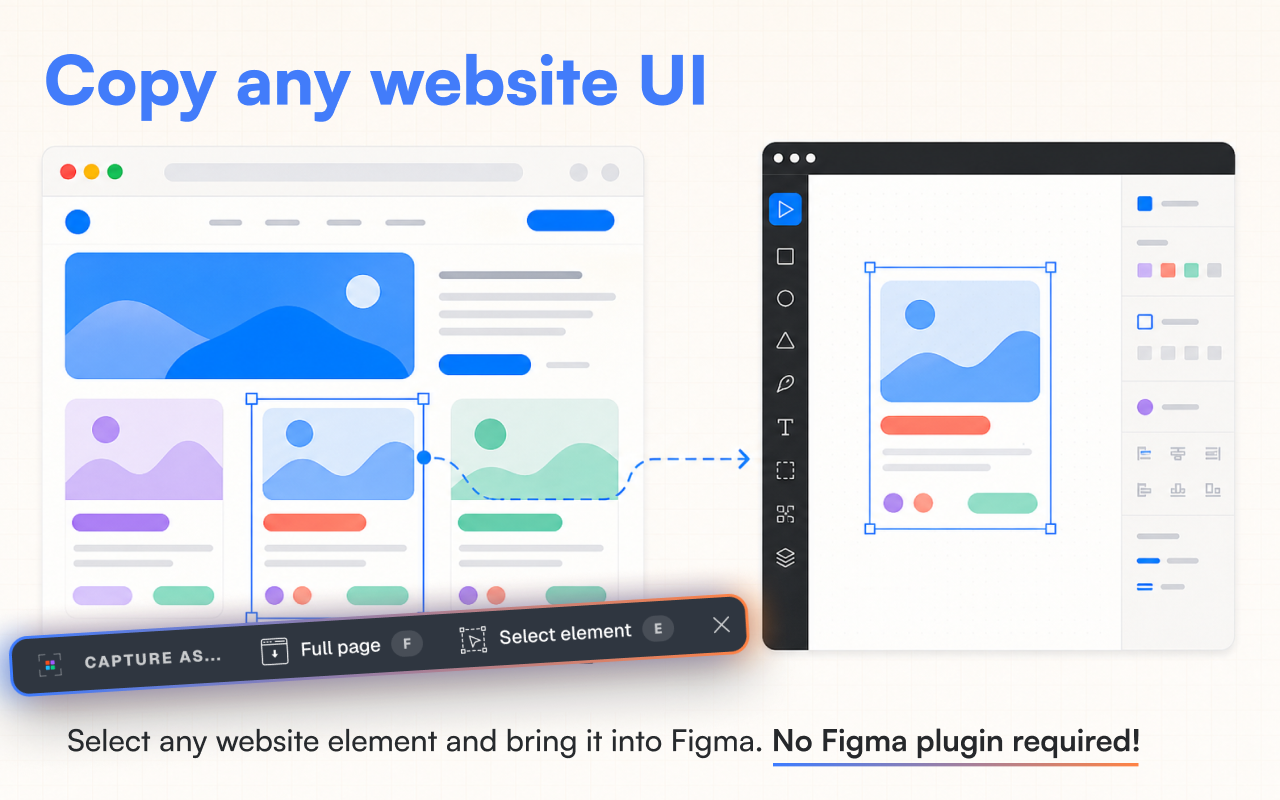
Short answer: if you want an html.to.design alternative that starts from the page already open in Chrome, try the CopyFig homepage demo or install CopyFig from the Chrome Web Store.
People usually search for an html.to.design alternative after running into one of three problems: the page is behind login, the result needs too much cleanup, or the workflow does not match how the team actually reviews websites.
The useful comparison is not just which tool looks best in a demo. It is which workflow gets your real website, app screen, landing page, or dashboard into Figma with enough editable structure to save time.
| Workflow | Best for | Tradeoff |
|---|---|---|
| Chrome extension | Rendered pages, logged-in UI, AI-built apps, responsive states | Work starts in the browser instead of inside Figma |
| Figma plugin | Simple public pages and Figma-first teams | May struggle with browser-only state, auth, and dynamic UI |
| Screenshot workflow | Fast reference boards and stakeholder notes | Flat image material, not editable design layers |
| Manual rebuild | Final design systems and polished components | Slow as the first step for audits or research |
What an html.to.design alternative should solve
The real job is usually website to Figma: take UI that already exists in the browser and turn it into useful design material. That might be a public landing page, a local React app, a private dashboard, or a prototype generated by Lovable, Bolt, v0, Cursor, or Claude Code.
A good alternative should preserve enough text, layout, fills, images, and section structure that you can edit the result in Figma instead of tracing a screenshot by hand.
When a Chrome extension is the better alternative
A browser-first workflow is strongest when the page state only exists in Chrome. That includes logged-in dashboards, JavaScript-rendered apps, local development servers, role-based UI, temporary preview URLs, and responsive states that appear only at a specific viewport width.
CopyFig fits this path: open the page in Chrome, capture the full page or one element, then paste the result into Figma. The workflow starts from the rendered tab you are already looking at.
- Capture a dashboard screen after login.
- Resize Chrome before capturing desktop, tablet, or mobile states.
- Copy one section when a full-page import would add clutter.
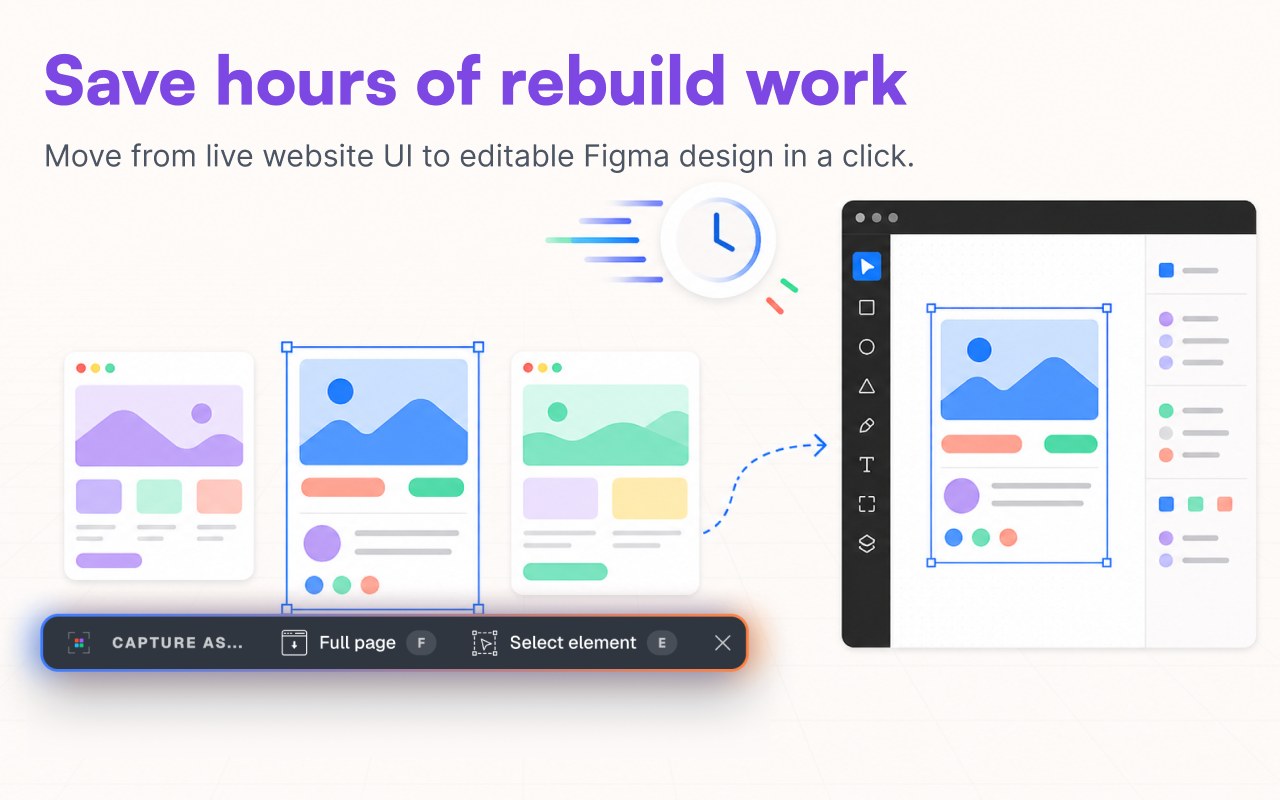
- Bring AI-generated app screens back into Figma for design cleanup.
When a Figma plugin can still make sense
A plugin-first workflow can be convenient if your team wants to stay inside Figma and the pages are simple, public, and easy for the tool to fetch. For straightforward marketing pages, that may be enough.
The risk appears when the imported page is not the same state you see in Chrome. If the UI depends on authentication, client-side rendering, local app state, or a specific browser width, test that exact page before committing to the workflow.
Why screenshots are not a real replacement
Screenshots are useful for moodboards, quick notes, and stakeholder decks. They are fast, portable, and visually accurate.
They are weak when the next step is design work. You cannot rewrite text, move a card, inspect spacing, extract a button, or turn a section into a reusable component without rebuilding it manually.
How to compare alternatives fairly
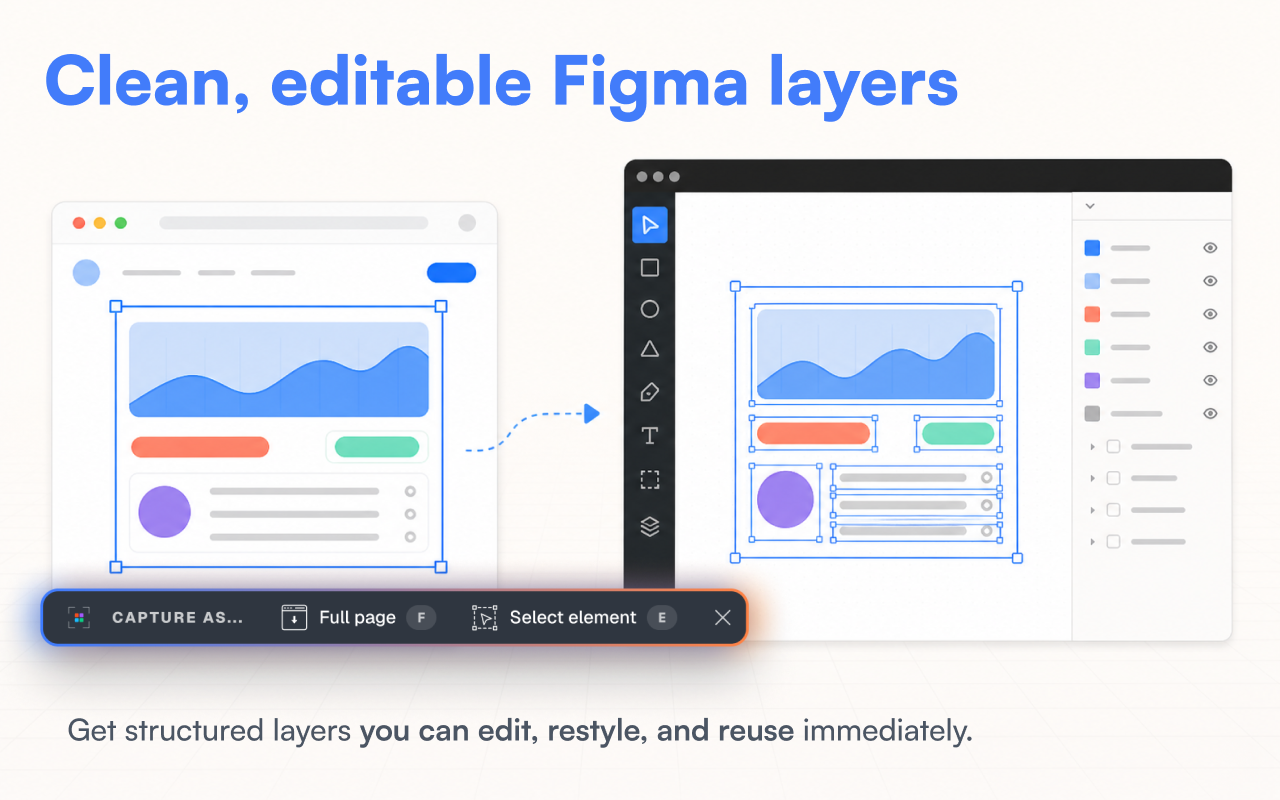
Pick three real test cases before choosing: one public marketing page, one app or dashboard screen, and one responsive state. Import each one and inspect the layer panel in Figma.
The best alternative is the one that leaves you with editable material and the least cleanup. A pretty first preview is not enough if every layer behaves like a flat screenshot.
- Can you edit real text after import?
- Can you capture the UI state you are allowed to access after login?
- Can you select one section instead of importing the whole page?
- Does the result save cleanup time compared with rebuilding manually?
Where CopyFig fits
CopyFig is the strongest fit when your source of truth is the visible Chrome tab. That makes it practical for redesign audits, competitor research, SaaS dashboards, AI-generated apps, landing pages, pricing sections, forms, modals, and local product screens.
It is not a replacement for design judgment. Treat the capture as a fast baseline, then clean up hierarchy, naming, components, spacing, and sensitive data inside Figma.
Frequently asked questions
What is the best html.to.design alternative?
If you need to capture the rendered page you can see in Chrome, including logged-in screens or dynamic apps, start with a browser-based tool like CopyFig.
Is a Chrome extension better than a Figma plugin?
A Chrome extension is often better for browser-only states, authenticated pages, responsive captures, and JavaScript-rendered UI. A Figma plugin can still be useful for simple public pages.
Can I use screenshots instead?
Use screenshots for visual reference. Use website-to-Figma capture when you need editable text, layout pieces, and reusable UI structure.
Can CopyFig capture AI-generated app screens?
Yes, if the app renders in Chrome and you are allowed to access it, CopyFig is designed to capture the visible UI state and paste it into Figma.